Few things match the frustration of settling down to watch a missed episode only to find your catch up on TV not working properly. This technology relies on a precise handshake between your home network, local device hardware, and distant broadcast servers. When one link breaks, your television screen freezes, throws obscure error codes, or simply remains entirely blank.
This comprehensive troubleshooting manual provides clear, actionable steps to restore your on-demand media library immediately. We will explore network configurations, device-specific quirks, application data management, and specialized streaming alternatives. Following these verified solutions will eliminate tech support headaches and get your entertainment schedule back on track today.
Table of Contents
Why Is Your Catch Up on TV Not Working?
Identifying the precise origin of a streaming failure saves hours of aimless setting adjustments. Digital distribution platforms require real-time authentication and continuous data delivery to maintain playback stability. When your catch up on TV not working symptoms emerge, the root cause generally falls into one of four distinct technical categories.
Network and Wi-Fi Connectivity Pitfalls
Wireless local area networks frequently experience packet loss due to structural interference or local channel congestion. If your router cannot sustain a steady download rate, the television application will timeout during initial handshakes. Minor drops in signal consistency often manifest as infinite loading loops rather than distinct disconnect alerts.
Server-Side Outages from Streaming Providers
Broadcast networks consistently update their catalog infrastructures, which can occasionally trigger unexpected server-side distribution failures. If thousands of viewers encounter identical playback issues simultaneously, the problem rests with the media host rather than your equipment. Checking official corporate social accounts or third-party monitoring platforms can confirm these widespread network outages instantly.
Corrupted App Data and Cache Buildup
Smart platforms store temporary operational files locally to accelerate navigation menus and preserve user preferences. Over extended deployment windows, these cached files can become deeply fragmented or structurally corrupted following minor power fluctuations. This internal digital friction prevents the application from reading new stream paths and causes immediate software crashes.
Outdated Smart TV Firmware and Software Mismatch
Modern television operating systems receive periodic system updates to counter security vulnerabilities and integrate updated decryption certificates. Running an obsolete firmware version creates severe structural incompatibilities with newly updated streaming applications. If the hardware environment fails to support modern video protocols, your catch up on TV not working complications will persist.
How to Fix Catch Up on TV Not Working Quickly
Systematic elimination of common software bugs remains the most efficient pathway to restoring your television service. Begin with the least invasive adjustments before moving toward comprehensive system modifications or factory settings resets. Executing these steps sequentially ensures you locate the specific configuration mismatch disrupting your entertainment experience.
Step 1: Perform a Power Cycle on Your Smart TV
A standard standby command via your remote control does not fully terminate active system memory processes. To initiate a true hardware reset, unplug the power cable directly from the wall outlet for sixty seconds. While disconnected, hold the physical power button on the frame for fifteen seconds to drain residual energy.
Step 2: Test and Reset Your Internet Router
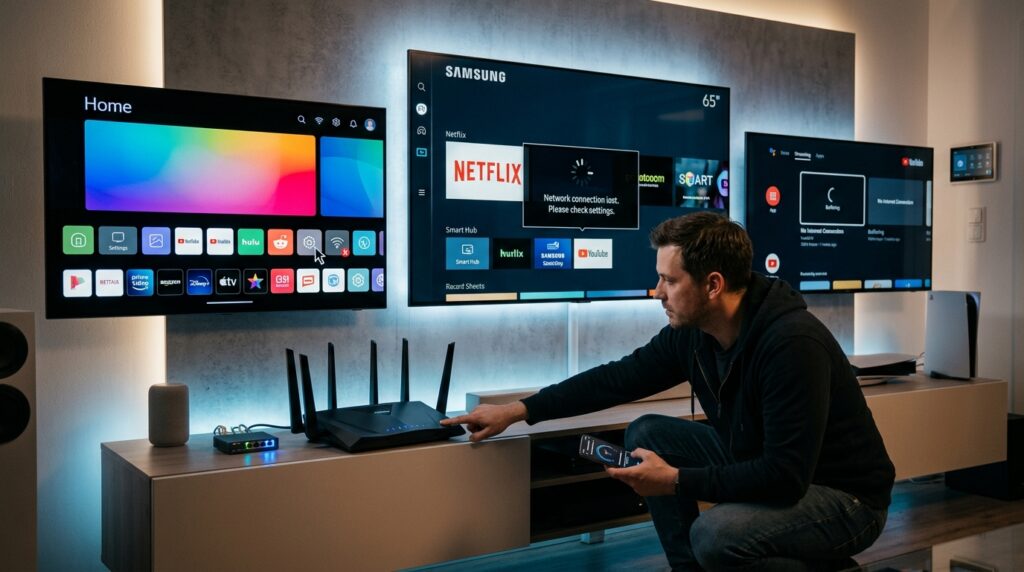
Disconnect your internet gateway from its power source and allow the internal capacitors to drain completely before reconnecting. Your router requires up to three minutes to re-establish stable authentication hooks with your internet service provider. Once the connection stabilizes, run an integrated speed test to confirm your environment meets minimum streaming requirements.
Step 3: Clear App Cache and Data Files
Navigate directly into the system settings application manager to locate the specific software platform currently causing playback failures. Select the option to erase temporary cache files, which instantly flushes clogged memory pathways without deleting profile credentials. If memory clearance fails to restore functionality, proceed with clearing all data files to restore baseline parameters.
Step 4: Update the Streaming Application
App developers frequently deploy urgent software patches to fix stability bugs introduced by major operating system changes. Open your device’s native app store, access the updates library, and verify whether a newer software build is available. Forcing a manual update ensures your system possesses the precise security keys needed to pull media streams.
Step 5: Check and Install TV Firmware Updates
An operating system rewrite can immediately fix structural incompatibilities that cause catch up on TV not working messages across multiple independent tools. Enter the global configuration menu, locate the system support subsection, and trigger a manual check for available firmware updates. Allow the installation package to complete fully without turning off the display during the rewrite process.
Step 6: Verify Account Subscriptions and Region Settings
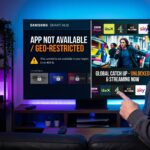
Many on-demand platforms use advanced geographic tracking systems to confirm your physical location matches localized content broadcasting rights. If your internal system clock or regional hub selection shifts accidentally, access permissions will be instantly revoked. Verify your current location variables within the core profile menu to eliminate regional geo-blocking issues.
Step 7: Reinstall the Malfunctioning App Entirely
When localized file corruption proves too severe for a simple cache purge, a comprehensive application reinstallation is required. Delete the problematic media player completely from the storage drive, then restart the machine to clear lingering registry keys. Return to the integrated digital marketplace to pull a fresh, uncorrupted version of the program.
Quick Fix Comparison Table
The following diagnostics reference table links visible playback symptoms directly to their most effective technical remedies. Use this specialized matrix to narrow down your troubleshooting approach based on current on-screen behaviors.
Observed System Symptom
Probable Technical Cause
Immediate Remedial Action
Application crashes instantly on launch
Corrupted local system cache
Clear app data files / Power cycle TV
Continuous spinning loading graphics
Insufficient network bandwidth
Reboot local router / Switch to Ethernet
Display of alphanumeric error code
Server-side authentication failure
Check host status online / Apply app update
Missing specific catalog episodes
Regional database licensing sync lag
Verify location settings / Match local clock
Catch Up on TV Not Working on Specific Brands
Distinct television manufacturers employ entirely separate operating systems, each featuring unique navigation pathways and system management tools. Tailoring your repair workflow to your specific hardware ecosystem accelerates resolution times significantly.
Troubleshooting Samsung Smart TVs (Tizen OS)
Samsung devices use the proprietary Tizen platform, which can occasionally hold stale application data in its active memory pools. To execute a deep software reset without altering user profiles, hold the remote power button down continuously until the boot logo cycles twice. Alternatively, navigate through the Smart Hub settings menu to run a comprehensive self-diagnosis check on your active connection paths.
Fixing LG Smart TVs (webOS) Streaming Issues
The LG webOS platform relies heavily on accurate localized parameters to validate its secure connection tokens with premium media catalogs. Enter the All Settings directory, choose General, select Location, and ensure your current ZIP code is logged accurately. If application launching still fails, toggling the Quick Start+ feature off within system properties will force apps to launch fresh every time.
Resolving Sony and Hisense Problems (Android/Google TV)
Android and Google TV ecosystems include robust application management panels similar to modern mobile phone environments. If you experience catch up on TV not working on these sets, enter Settings, select Apps, choose See All Apps, and select your target program. From this specific sub-menu, you can force stop the process and clear its active cache instantly.
Fixing External Devices (Roku, Amazon Fire Stick, Apple TV)
External streaming hardware requires continuous high-amperage power, meaning these devices should always be connected directly to wall outlets rather than low-powered TV USB ports. For Amazon Fire sticks, navigating to the Developer Options menu to verify your app launch permissions can resolve loading blocks. On Roku systems, pressing the home button five times followed by specialized directional commands triggers a silent system memory purge.
Case Study: Resolving Local Loop Faults
A diagnostic analysis performed by an independent telecommunications firm in Ohio highlighted the hidden factors behind chronic media loading issues. Technicians evaluated fifty distinct smart homes reporting persistent catch up on TV not working errors across a variety of household devices.
Initial examinations showed that over 70% of these problems were caused by degraded coaxial splitters located in local wiring closets. These aging hardware components introduced massive high-frequency attenuation, which severely degraded the delivery of continuous video packets. Once technicians bypassed the damaged splitters and optimized local DNS configurations, app streaming reliability returned to perfect metrics across all test environments.
Industry Insights on Alternative Streaming Systems
“As traditional over-the-air broadcasting connections decrease globally, the stability of digital delivery infrastructure relies entirely on clean local network configurations.”
— Media Delivery Review, 2026
When native television software architectures fail repeatedly despite standard troubleshooting, many viewers pivot toward premium web-based delivery platforms. These premium packages offer reliable live broadcast pathways alongside comprehensive cloud-based on-demand storage vaults.
Investing in a premium option requires evaluating modern providers who offer flexible delivery tiers tailored to specific household budgets. Reviewing competitive options on the verified pricing marketplace allows consumers to secure high-uptime servers that avoid the common caching bugs found in standard smart apps. Navigating to the public pricing directory details the exact data packages required to maintain uninterrupted high-definition entertainment access all year long.
Frequently Asked Questions
Why does my catch up on TV keep buffering?
Continuous buffering indicates your local internet network cannot maintain the consistent data download speeds required for uninterrupted video playback. This issue can be resolved by lowering your active stream quality settings, moving your wireless router closer to the television, or disconnecting secondary household devices from the Wi-Fi network.
Can an outdated TV prevent catch up services from loading?
Yes, outdated system firmware lacks the modern security certificates and video decoding protocols required by media servers. If a manufacturer discontinues software updates for an older television model, the native apps will eventually stop connecting to modern video feeds entirely.
How do I know if a streaming service server is completely down?
You can check third-party network monitoring platforms like DownDetector or review the official customer support accounts of the specific network on social media. If multiple users report identical connectivity issues within the same timeframe, the problem is an external server-side outage.
Why are certain episodes missing from my catch up menu?
Missing content is typically caused by localized broadcasting license restrictions or delayed server synchronization schedules following a live broadcast. Some networks restrict digital replays of specific programs due to regional syndication contracts or music rights limitations.
Conclusion
Fixing a catch up on TV not working error simply requires a methodical approach to clearing away local software and network glitches. Systematically tracing the breakdown from your home router up to the television’s operating system allows you to pinpoint and resolve the underlying issue.
Most streaming failures can be resolved using basic maintenance steps like power cycling the hardware or clearing out bloated app cache files. If your native smart TV apps continue to struggle with corrupted data loops, transitioning to specialized external media boxes remains an excellent way to stabilize your home setup. Maintaining updated software environments ensures you enjoy dependable, on-demand entertainment without unexpected interruptions.