There is nothing more frustrating than settling in to watch your favorite show only to find catch up tv not working on smart tv. The screen freezes, an error code pops up, or the app simply refuses to load. Modern living rooms have largely abandoned the rigid, unforgiving schedules of traditional daily broadcasting in favor of true on-demand television flexibility, making these unexpected technical interruptions incredibly disruptive to your evening. When you encounter the dreaded issue of catch up tv not working, it can feel like your entire entertainment plan has been ruined in an instant.
This comprehensive guide is designed to walk you through every possible fix, from the simplest reboot to advanced network tweaks. We’ll help you accurately diagnose the root cause and provide clear, actionable steps to restore your streaming service quickly, so you can get back to your programming without unnecessary stress.
Understanding Why Your Catch Up TV App Fails
Before diving into fixes, it helps to know what’s causing the problem. Catch up TV services like BBC iPlayer, ITVX, All 4, and My5 rely on a complex chain of technology to work. A break in any link can cause a failure. When trying to troubleshoot an instance of catch up tv not working, you must realize that the high-definition video data travels from a remote broadcaster’s server, heavily relies on your local Internet Service Provider’s neighborhood infrastructure, passes into your localized Wi-Fi router, and finally communicates with the specific software application installed on your television’s operating system.
If any single digital handshake along this incredibly complex electronic pathway fails, drops a packet, or times out, you will inevitably experience a playback disruption. Realizing the sheer technical complexity of this digital pipeline is the secret to figuring out why catch up tv not working happens so suddenly when your device was seemingly fine yesterday.
Primary Culprits: App, Connection, and Device
The three most common reasons for streaming failures are app glitches, poor internet connectivity, and outdated TV software. Often, the issue is a temporary bug that a simple refresh can solve. Other times, it requires a deeper dive into your home network settings or TV firmware. For example, if a background software patch did not install correctly over the weekend due to a sudden power dip, it can immediately lead to frequent application crashes.
Similarly, an overloaded local router that has been running continuously for six months without a proper reboot can actively drop video data packets, which frequently results in sudden playback failures. Isolating the specific culprit among these three foundational pillars is the most effective way to address catch up tv not working without wasting hours of unnecessary frustration.
Signs Your Smart TV Needs Attention
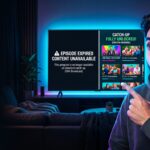
How is the failure manifesting? Is the app crashing on launch, showing a spinning buffer wheel forever, or displaying a specific error message like “Content not available” or “Network error”? Identifying the exact symptom is the first step in targeted smart tv streaming troubleshooting. Paying close attention to the specific visual cues on your display can perfectly help diagnose if you are dealing with a localized network issue or a massive, widespread server outage.
For instance, a totally black screen that still actively plays background audio is usually a localized hardware rendering issue, while a persistent internet connection error prompt usually means the problem is network-related. Documenting these specific symptoms is crucial because accurately defining the exact error behavior makes fixing catch up tv not working a straightforward process of elimination.
The 12-Step Troubleshooting Checklist
Follow this step-by-step guide in order. Start with the easiest solutions and progress to more technical steps if needed. Many viewers successfully resolve catch up tv not working within the first three steps, so do not skip the foundational basics.
Step 1: Restart the Catch Up TV App
Fully close the application from your TV’s app manager or task switcher. Then reopen it. This clears the app’s temporary memory (cache) and can resolve minor glitches instantly. On operating systems like Samsung’s Tizen or LG’s webOS, you can often hold the back button or navigate to a dedicated device care menu to forcibly close suspended applications. When you have application instability, this is always your primary defense against corrupted localized memory preventing video playback.
Step 2: Check Your Internet Connection
Navigate to your TV’s network settings and run a connection test. Ensure your download speed is at least 5-10 Mbps for Standard Definition and 25+ Mbps for HD streaming. A weak signal is a prime suspect. Simply being connected to the home Wi-Fi network does not guarantee that actual data is actively flowing from the broader internet. If the internal speed test fails to reach external servers, the primary reason you are experiencing catch up tv not working is undoubtedly a lack of adequate home bandwidth.
Step 3: Reboot Your Smart TV
Power off your TV completely, unplug it from the wall for 60 seconds, and then plug it back in. This full power cycle clears system errors and refreshes all background processes. Often referred to as a “cold boot,” this physical electrical disconnection entirely drains the residual capacitor charge from the television’s internal motherboard, actively clearing out stubborn software bugs that a standard remote-control standby toggle simply cannot fix.
Step 4: Update the Catch Up TV App
Go to your TV’s app store (e.g., Samsung Galaxy Store, LG Content Store, Google Play Store). Search for the catch up TV app and check for an “Update” button. Outdated apps often lose compatibility. Broadcasters frequently update their internal security certificates and video player encoding protocols. If your localized app falls too far behind these vital server-side changes, you will inevitably encounter catch up tv not working as the server rejects your outdated software.
Step 5: Update Your Smart TV’s Firmware
Navigate to Settings > Support > Software Update on your TV. Install any available updates. Manufacturers release patches that fix bugs affecting app performance and connectivity. Operating systems require constant refinement to interact properly with newly updated third-party media players. Ignoring a major system patch is a guaranteed method for inducing an instance of application failure and triggering catch up tv not working.
Step 6: Check for Service Outages
Visit the broadcaster’s official social media account (X/Twitter or Facebook) or their help website. They will post if there is a widespread server issue affecting all users. If thousands of other users are concurrently experiencing catch up tv not working across the country, you can safely put your remote down and wait patiently for the provider’s engineering team to restore the centralized data servers on their end.
Step 7: Reinstall the Problematic App
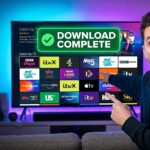
Uninstall the catch up TV app from your TV. Then, download and install a fresh copy from the official app store. This ensures you have a clean, corruption-free installation. Sometimes, digital data systematically degrades on the television’s internal flash memory. Removing the software completely and pulling a fresh code package from the cloud is a highly effective way to permanently cure persistent launch bugs that cause catch up tv not working.
Step 8: Restart Your Router and Modem
Unplug your router and modem from power for 2 minutes. This renews your connection with your Internet Service Provider (ISP) and can resolve IP address conflicts that block streaming. Your router is essentially a small computer that can rapidly overheat or suffer from localized digital traffic jams. Flushing its active memory often instantaneously resolves catch up tv not working by restoring a clean line of communication to your home.
Step 9: Switch Between Wi-Fi and Ethernet
If you’re on Wi-Fi, try a wired Ethernet connection for stability. If you’re already wired, test Wi-Fi to rule out a faulty cable. This identifies if the problem is with your specific connection type. An Ethernet connection provides a dedicated, heavily uninterrupted physical pipeline for heavy video traffic, which is highly recommended for anyone who frequently suffers from severe buffering issues or recurrent instances of catch up tv not working.
Step 10: Adjust Your DNS Settings
In your TV’s network settings, change the DNS server from “Automatic” to a public option like Google DNS (8.8.8.8 and 8.8.4.4). This can sometimes resolve content delivery network issues. Your ISP’s default Domain Name System can sometimes struggle to properly route heavy traffic to remote video servers rapidly, making this specific network tweak a fantastic digital trick to combat catch up tv not working.
Step 11: Factory Reset Your Smart TV (Last Resort)
Warning: This erases all settings and apps. Go to Settings > General > Reset. Use this only if all else fails. It returns the TV to its original state, eliminating deep-seated software errors. Proceeding with a total factory wipe means you will inevitably need to log back into every single streaming service manually, but it guarantees the absolute removal of whatever corrupted operating file was secretly causing catch up tv not working.
Step holding TV not working on smart tvcatch up tv not working on smart tv requires a unique code from your TV. You will typically be prompted to visit a specific URL on your smartphone or personal computer, securely log into your established broadcaster profile, and enter this alphanumeric activation pin. This critical security step formally links your newly reset hardware back to your personal viewing account, fully authorizing your device to stream protected content once again.
App-Specific Issues for BBC iPlayer, ITVX & More
Different broadcasters have different apps with unique quirks. Here’s how to tackle problems with the major UK catch up services. When trying to resolve frustrating playback interruptions, applying generic hardware fixes is incredibly helpful, but applying platform-specific knowledge is often the true key to total viewing victory.
Fixing BBC iPlayer on Smart TV
Common iPlayer errors include the “Something went wrong” message or playback stuttering. First, ensure you have a valid TV License and are signed into your BBC account. Clear the app’s data/cache from your TV’s application settings menu. Furthermore, if you notice that your cross-device progress is failing to sync properly, you must log into the BBC website on a computer and verify that the personalization toggles are switched on.
Remember that the iPlayer software relies heavily on localized background cookies to continually verify your identity; if your television’s internal browser settings actively block tracking cookies, you will face frustrating login loops that look identical to catch up tv not working.
Solving ITVX Playback Problems
If ITVX fails to load shows or crashes, check your geographical location settings on your TV. ITVX is only available in the UK. Also, disable any VPN or proxy service you might be using, as these are blocked. Broadcasters utilize incredibly strict geo-blocking algorithms to fiercely protect regional television licensing rights. If you hear audio but are met with a completely blank screen, ensure that any built-in screen-dimming overlays are completely disabled, as these settings severely conflict with modern video copy-protection protocols. Encountering a blank display is one of the most frustrating forms of catch up tv not working, but it is rarely a fatal hardware failure.
All 4 and My5 Not Loading Content
For Channel 4 and Channel 5 apps, advertising blocks can sometimes cause hiccups. Ensure any ad-blocker on your home network is disabled. Try creating and logging into a free account with the broadcaster for a more stable experience.
Because these specific on-demand TV platforms are entirely funded by mandatory commercial breaks, their software is rigidly designed to intentionally stall or crash if it cannot successfully communicate with their third-party advertising servers. If you are actively utilizing a network-wide ad-blocker like a Pi-hole, you must whitelist the exact tracking domains associated with Channel 4 and My5, otherwise, you will constantly experience catch up tv not working.
Error Code
Likely Cause
Quick Fix
403 Forbidden
Geographic restriction or VPN use.
Disable VPN and ensure you’re in the UK.
503 Service Unavailable
Broadcaster’s servers are down.
Check broadcaster’s status page and wait.
Buffer Spinning
Insufficient internet speed.
Run a speed test, pause other devices.
App Crash on Launch
Corrupted app data or outdated OS.
Reinstall app and update TV firmware.
Advanced Network and Smart TV Settings
If basic steps don’t work, your home network might need optimization. These settings can make a dramatic difference in streaming reliability. Troubleshooting catch up tv not working often requires peeking deeply under the hood of your home internet setup to ensure your physical network environment is perfectly conducive to heavy media delivery.
Optimizing Wi-Fi for Streaming
Place your router centrally and elevate it. Reduce interference by moving it away from microwaves, cordless phones, and thick walls. For the best performance, connect your TV to the 5 GHz band if your router is dual-band. The standard 2.4 GHz band is incredibly crowded with neighboring routers and smart home appliances, which creates a massive amount of invisible digital noise. Shifting your television strictly to the wider, much faster 5 GHz frequency will drastically reduce wireless packet loss, serving as a powerful preventative measure against catch up tv not working.
Configuring Router QoS Settings
Quality of Service (QoS) in your router’s admin panel prioritizes streaming traffic. Assign a high priority to your smart TV’s MAC or IP address. This tells your router to give bandwidth to your TV over other devices. By logging into your router’s administrative dashboard via a desktop web browser, you can literally instruct the networking hardware to strongly favor your living room screen, ensuring that a large background download on a family member’s laptop does not trigger catch up tv not working during your scheduled movie night.
Checking for ISP Throttling
Some Internet Service Providers may throttle streaming video traffic. Test your speed during a streaming failure. If it’s abnormally low only for video, contact your ISP or consider using a VPN to encrypt your traffic. ISPs frequently utilize highly automated deep packet inspection systems to specifically identify and selectively throttle high-bandwidth video streams during peak evening hours. If you suspect artificial bandwidth limits are actively causing catch up tv not working, securing your network traffic is a highly recommended solution.
Alternative Ways to Watch Catch Up TV
If your smart TV’s built-in apps remain problematic, you have other excellent options to access your favorite catch up content. Do not let poorly optimized built-in television software ruin your evening; if you are plagued by constant freezing, simply bypassing the television’s internal operating system is a highly effective workaround for catch up tv not working.
Using Streaming Sticks and Boxes
Devices like Roku, Amazon Fire Stick, Apple TV, and Google Chromecast often have more frequently updated and stable app versions. They bypass your TV’s slower internal processor and software. By plugging a dedicated streaming peripheral directly into an open HDMI port, you completely sidestep the outdated system architecture causing your specific display issues, effectively permanently resolving catch up tv not working with a lightning-fast, modern interface.
Watching via Gaming Consoles
Modern PlayStation and Xbox consoles have full catch up TV app support. They are powerful media hubs with robust internet connectivity, making them a reliable fallback. Because highly advanced video game consoles possess incredibly powerful internal processors and vast amounts of RAM, they run heavy video applications flawlessly. If your television aggressively struggles with basic memory management, switching over to your console immediately cures catch up tv not working.
Casting from Your Phone or Tablet
Use the “Cast” or “Screen Mirroring” function from the broadcaster’s mobile app directly to your smart TV. This method relies on your phone’s app and connection, sidestepping the TV app entirely. Mobile applications are updated far more frequently by developers than television software. Bypassing a heavily glitchy native television app by using casting protocols effectively circumvents instances of catch up tv not working without requiring any expensive additional hardware purchases.
Common Mistakes to Avoid
Sometimes, the solution is to stop doing something that’s causing the problem. Be mindful of these frequent user errors. Correcting these digital habits will dramatically reduce how often you experience catch up tv not working.
Ignoring Updates: Postponing TV firmware or app updates is the leading cause of compatibility breakdowns. Running outdated software practically guarantees you will encounter catch up tv not working eventually.
Overloading Wi-Fi: Streaming on the TV while downloading large files on other devices will cause buffering. The network simply cannot handle the demand, leading to catch up tv not working.
Using Default DNS: Your ISP’s default DNS can be slow or unreliable for streaming services. Customizing your DNS is a simple fix for catch up tv not working.
Skipping the Router Reboot: Routers need periodic restarts; running them for months non-stop leads to issues. A tired router is a primary trigger for catch up tv not working.
Forgetting Location Services: Having a VPN active or incorrect country setting will block UK-only catch up services. Misconfigured locations will always result in catch up tv not working.
Frequently Asked Questions (FAQs)
Why does my catch up TV keep buffering?
Buffering is almost always due to low internet speed or network congestion. Run a speed test on your TV and pause other internet activities in your home. If multiple internal devices are selfishly hoarding bandwidth simultaneously, your television simply cannot pull enough raw video data down from the cloud to sustain the picture. Upgrading your internet tier or employing a long Ethernet cable directly from the router to the display is the absolute most permanent way to eliminate this agonizing form of catch up tv not working.
How do I update apps on my Samsung/LG smart TV?
On Samsung, open the Apps panel, select the Settings gear, and choose “Update apps.” On LG, go to the LG Content Store, select “My Apps,” and updates will be listed. Navigating these built-in digital storefronts allows you to manually force the installation of fresh software packages. Regularly auditing these app menus ensures you definitively remain ahead of server-side security changes, dramatically reducing the likelihood of encountering catch up tv not working.
Do I need a TV License to use catch up TV?
Yes, you need a valid UK TV License to watch or download any BBC programmes on iPlayer, live or on catch up. Other services may not require it for catch up only. The BBC enforces this rule strictly through user account verification portals. Trying to illegally bypass this strict legal requirement by employing cheap proxy servers will usually result in an immediate account suspension or a persistent case of catch up tv not working across their entire digital platform.
Why does catch up TV work on my phone but not my TV?
Your phone may have a stronger Wi-Fi connection, a newer app version, or different location settings. Compare the two devices to find the discrepancy. Because aggressive smartphone manufacturers update their internal mobile operating systems far more frequently than television manufacturers, mobile apps generally suffer from fewer unresolved bugs. This glaring software disparity is the leading reason why users experience catch up tv not working while their mobile devices stream flawlessly on the exact same Wi-Fi network.
Can a factory reset fix my streaming apps?
Yes, a factory reset can fix deep software conflicts, but it erases everything. Use it only as a last resort after trying all other troubleshooting steps. Resetting the device completely scrubs the localized memory blocks and fiercely wipes away any underlying corrupted system files that are stubbornly interfering with your media players. While incredibly tedious to carefully set back up, it remains the ultimate nuclear option for curing persistent cases of catch up tv not working.
Is my smart TV too old for catch up TV?
If your TV is over 7-8 years old, the processor may be too slow and the software no longer supported. A streaming stick is an affordable upgrade path. As video codecs become vastly more complex and application interfaces demand substantially more RAM, older television motherboards simply cannot keep up with the modern processing requirements. If your digital device is a decade old, encountering catch up tv not working is an unavoidable hardware limitation rather than a temporary software glitch.
Conclusion
Diagnosing and fixing when your catch up tv not working on smart tv can feel technical, but it’s usually a process of elimination. Start with the simple steps: restart the app, reboot your TV and router, and check for updates. Progress to network optimizations and, if necessary, consider using an external streaming device for a smoother experience. Solving the frustrating mystery of catch up tv not working is rarely a simple one-size-fits-all scenario, but systematically checking off each potential point of failure guarantees you will eventually isolate the core technical fault.
By methodically working through this guide, you’ll identify the bottleneck and get back to your missed shows in no time. Remember, persistent issues are often solved with a fresh app install or a quick call to your internet provider to check your line stability. Do not let poorly designed technology dictate your evening downtime; by fully understanding the mechanics behind your digital setup, you can confidently conquer any instance of catch up tv not working and reclaim your favorite television viewing options forever.