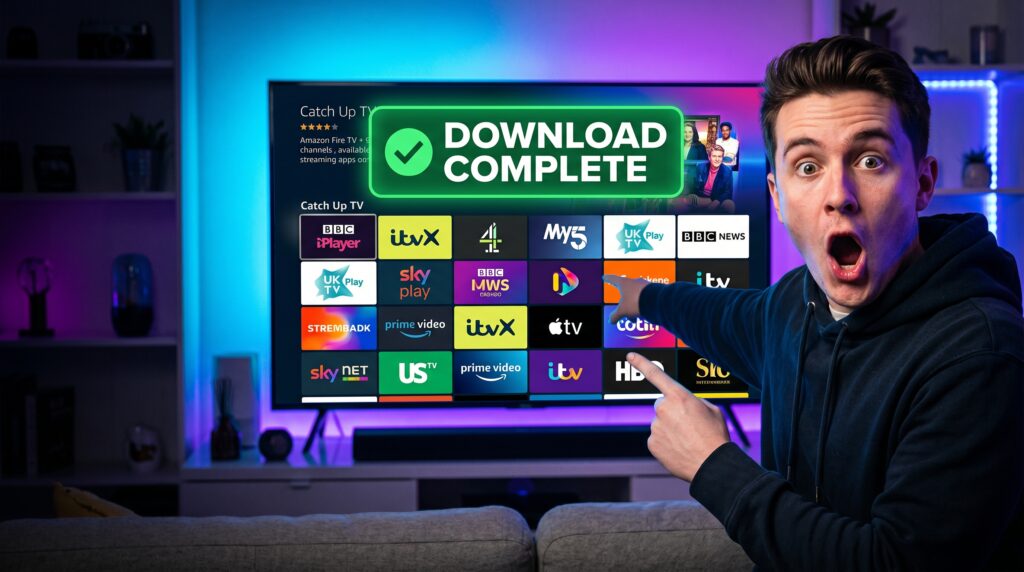
Struggling to find a reliable way to watch live TV and on-demand content on your Amazon Firestick? You’re not alone. Over 40% of Firestick users install third-party apps to access broader content libraries. This guide will show you exactly how to install Catch Up TV on Firestick, a popular app for free live channels, movies, and series. We’ll walk you through every step, from enabling unknown sources to launching your first stream. You’ll also learn expert tips to enhance streaming quality and discover the best alternative catch up tv apps available. Let’s unlock a world of entertainment.
What is Catch Up TV & Why Use It on Firestick?
Catch Up TV is a streaming application that aggregates live TV channels, sports, news, and video-on-demand content. It’s not available on the official Amazon Appstore, which is why a manual installation process is required. Users choose it for its extensive, often free, content library spanning multiple countries and genres.
The Benefits of Using Catch Up TV on Your Fire TV
Installing Catch Up TV transforms your Firestick into a powerful entertainment hub. You gain access to hundreds of channels without expensive cable subscriptions. The app offers a user-friendly interface and organizes content by category, making browsing simple. It’s a cost-effective solution for cord-cutters seeking diverse programming.
Understanding the Legal and Safety Considerations
It’s crucial to understand the app’s content sources. Always use a reliable VPN when streaming to protect your privacy and data. We advocate for using streaming apps only to access content you are legally entitled to view. Responsible usage ensures a safe and sustainable streaming experience for everyone.
Pre-Installation Preparation
Proper setup prevents most common errors. Before you begin the installation, you need to adjust a key Firestick setting and gather the necessary tools. This section ensures your device is ready for the new app.
Step 1: Enable Apps from Unknown Sources
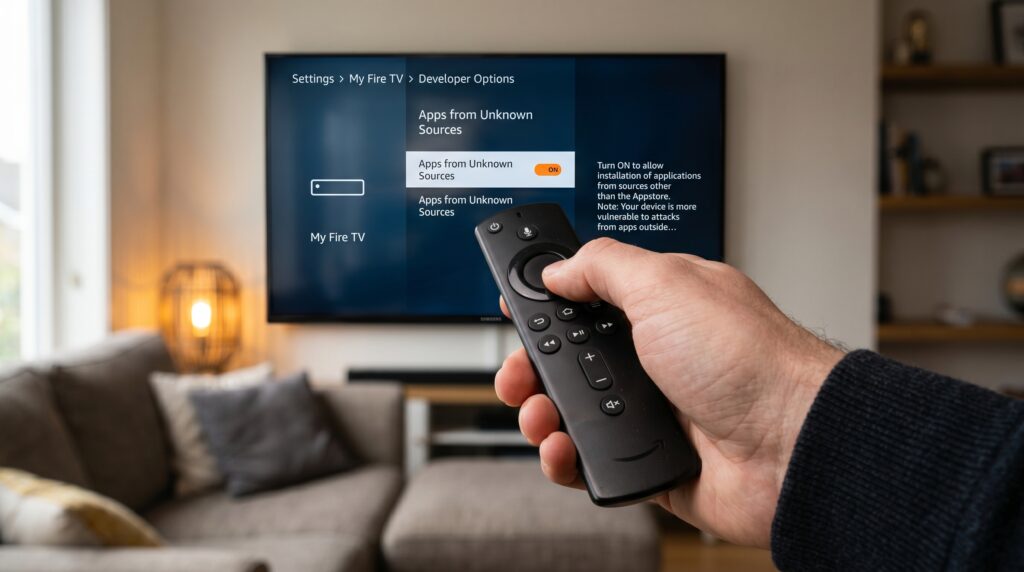
Your Firestick, by default, blocks installations from outside the Amazon Appstore. You must enable “Apps from Unknown Sources” for the developer option. Navigate to Settings > My Fire TV > Developer Options. Toggle the “Apps from Unknown Sources” setting to ON. Confirm any warning prompts to proceed.
Step 2: Install the Downloader App
You need a way to download the Catch Up TV APK file. The Downloader app is the most straightforward tool. Go to your Firestick’s home screen and use the search function. Search for “Downloader” and install the official app by AFTVnews. This app will fetch the installation file from the web.
Step-by-Step Guide: How to Install Catch Up TV on Firestick
Follow this numbered guide carefully. Each step is designed to be clear and foolproof, ensuring a successful installation on any Firestick model, including the 4K Max.
Step 1: Launch the Downloader App
Open the Downloader app from your “Your Apps & Channels” list. The first launch may request permission to access photos, media, and files. Grant these permissions to allow the app to download and install the APK file. This is a standard security step.
Step 2: Enter the Official APK Download URL
In the Downloader’s home screen, you’ll see a field labeled “Enter a URL or search term.” Carefully type the official source URL for the Catch Up TV APK. Using the correct, trusted URL is critical to avoid malware. We recommend using the official website link, which we provide in our trusted resources section below.
Step 3: Download the Catch Up TV APK File
Click “Go” after entering the URL. The Downloader will connect to the source and begin downloading the APK file. A progress bar will show the download status. This process typically takes less than a minute on a stable internet connection. Wait for the download to complete fully.
Step 4: Install the Downloaded APK
Once downloaded, the Downloader app will usually prompt you to install the file automatically. If not, click on the file name in your downloads list. A standard Android installation screen will appear. Click “Install” and wait for the process to finish. Do not interrupt this step.
Step 5: Launch Catch Up TV and Configure
After installation, you’ll see options for “Open” or “Done.” Click “Open” to launch the app immediately. Upon first launch, the app may load its channel list and guide data. Navigate through the categories to ensure everything is working correctly. You are now ready to stream.
Featured Snippet-Optimized Steps Summary:
Enable “Apps from Unknown Sources” in Fire TV Developer Options.
Install the “Downloader” app from the Amazon Appstore.
Open Downloader, enter the official APK URL, and download the file.
Select the downloaded file and click “Install” on the prompt.
Open the app from your app list and start streaming.
Troubleshooting Common Installation Issues
Even with a perfect guide, you might hit a snag. Here are solutions to the most frequent problems Firestick users encounter when installing third-party apps like Catch Up TV.
Error: “Download Failed” or “App Not Installed”
This often points to an incorrect or corrupted APK file. First, clear the cache of the Downloader app in Settings > Applications > Manage Installed Applications. Then, ensure you are using the latest, official APK download link. A weak Wi-Fi signal can also corrupt downloads.
App Crashes on Launch or Buffers Excessively
Constant crashing usually indicates an app conflict or insufficient device resources. Force stop the app and clear its cache via the Firestick settings menu. For buffering, check your internet speed; wired Ethernet via an adapter is more stable than Wi-Fi for streaming. Also, try using a premium VPN, as sometimes ISPs throttle streaming traffic.
How to Update Catch Up TV on Firestick
The app won’t update automatically. When a new version is released, you must repeat the download and installation process. Overwrite the old version when prompted. Always back up your favorites list if the app supports it before updating. This ensures you don’t lose your personalized settings.
Top Catch Up TV App Alternatives for Firestick
While Catch Up TV is excellent, exploring alternatives gives you more options and helps you build a more flexible streaming setup. Here are some of the best-performing apps with similar functionality, available through similar sideloading methods after completing how to install catch up tv on firestick.
Many users expand their experience by trying different live TV and on-demand platforms that offer varied interfaces, content libraries, and playback features. These alternatives can complement your main setup and provide backup options in case one service experiences downtime or limited availability.
When following how to install catch up tv on firestick, it’s also useful to understand that different apps may perform better depending on your device version, storage capacity, and internet speed. Some apps are lighter and more optimized for older Firestick models, while others are designed for newer 4K devices with stronger processing power.
To get the best experience, always test a few options, compare streaming stability, and choose the apps that best match your viewing habits. By combining multiple compatible services, your how to install catch up tv on firestick setup becomes more robust, giving you greater control over your entertainment choices and reducing reliance on a single application.
1. Cinema HD
Cinema HD is a powerhouse for movies and TV shows, focusing on on-demand content. It features a beautiful, Trakt-integrated interface with high-quality links. It’s frequently updated, which means better stability and fewer dead links compared to some other free apps.
2. Pluto TV
Pluto TV is a legal, free live TV service with hundreds of channels and on-demand movies. It’s officially available on the Amazon Appstore, so no sideloading is needed. Its channel guide mimics traditional cable TV, making it very user-friendly for all ages.
3. TVTap Pro
TVTap Pro offers a massive list of live international channels. It’s particularly strong for sports and news channels from around the world. The interface is simple and channel switching is fast, providing a seamless live TV experience.
Comparison Table: Catch Up TV vs. Top Alternatives
App Name
Primary Content
Official Appstore?
Update Frequency
Best For
Catch Up TV
Live TV & VOD
No
Moderate
All-around free live TV
Cinema HD
Movies & Series (VOD)
No
High
Latest on-demand movies
Pluto TV
Live TV & VOD
Yes
High
Legal, easy setup
TVTap Pro
Live International TV
No
Moderate
Global sports & news
Pro Tips & Expert Insights for Optimal Streaming
Go beyond basic installation with these advanced strategies. They will significantly improve your streaming reliability, video quality, and overall experience when learning how to install catch up tv on firestick on the Firestick platform.
Start by optimizing your network performance. A stable 5GHz Wi-Fi connection or wired Ethernet adapter can reduce buffering and improve playback consistency. If you’re following how to install catch up tv on firestick, ensuring your connection is strong is just as important as the installation itself, especially for smooth HD and 4K streaming.
Next, manage system resources effectively. Regularly clear app cache, close background applications, and uninstall unused apps to free up memory. This helps your Firestick run faster and prevents performance drops during streaming sessions related to how to install catch up tv on firestick setups.
You should also fine-tune display and playback settings. Adjusting resolution settings to match your TV’s capabilities and enabling hardware acceleration where available can improve video quality and reduce lag. These adjustments make a noticeable difference after completing how to install catch up tv on firestick.
Finally, keep your device updated and consider using a VPN for privacy, stability, and broader content access. These combined strategies ensure that your experience with how to install catch up tv on firestick is not only functional but optimized for long-term, high-quality streaming performance.
Use a Premium VPN for Safety and Access
A VPN is often considered an essential tool for savvy streamers, especially when learning how to install catch up tv on firestick and optimizing the device afterward. It adds a layer of privacy and control over your internet connection by encrypting your traffic, helping protect your online activity from being easily monitored by your Internet Service Provider.
One of the practical benefits users notice when following how to install catch up tv on firestick and using streaming apps is the potential reduction of ISP throttling. Some providers may slow down streaming traffic during peak hours, which can lead to buffering or lower video quality. A VPN can help maintain more consistent speeds by masking the type of data being used.
Another advantage related to how to install catch up tv on firestick setups is expanded content access. A VPN can make it appear as if you are browsing from a different region, which may allow you to access streaming libraries or services that vary by location, significantly broadening your available content options.
Overall, when considering how to install catch up tv on firestick, pairing your setup with a VPN can improve both privacy and streaming flexibility when used responsibly and in accordance with local laws and service terms.
Manage Firestick Storage and Performance
Firesticks have limited storage, so regular maintenance is essential for smooth performance. One of the most effective habits is to frequently clear the cache of streaming apps by navigating to Settings > Applications. This helps remove temporary files that can build up over time and slow down your device, especially if you use multiple apps for streaming.
It’s also a good idea to uninstall any apps you no longer use. Even inactive applications can take up valuable space and contribute to sluggish performance or update issues. Keeping only the essentials ensures your Firestick runs more efficiently and leaves room for important updates.
For heavy users, expanding storage can make a significant difference. Using a USB OTG cable with a flash drive allows you to add external storage, which helps manage larger apps and additional media files more comfortably. This setup is especially useful if you frequently test or switch between multiple streaming applications, as it reduces storage pressure on the internal memory and improves overall stability.
Optimize Your Home Network
For 4K streaming, a strong, consistent connection is key. If possible, connect your Firestick via Ethernet using a micro-USB to Ethernet adapter to reduce latency and avoid wireless interference. A wired connection provides more stable bandwidth, which is especially important for high-resolution playback and prevents buffering during peak usage.
If you’re using Wi-Fi, make sure your router is set to the 5GHz band instead of 2.4GHz, as it offers faster speeds and less congestion over short distances. Also, avoid overcrowding your network with too many active devices at the same time, since this can reduce available bandwidth and impact streaming quality.
Simple router reboots can often solve intermittent issues by clearing temporary glitches and refreshing your connection to the internet service provider. For the best results, place your Firestick within a strong signal range of your router and minimize physical obstacles like walls or large metal objects.
Frequently Asked Questions (FAQ)
Is Catch Up TV free to use on Firestick?
Yes, the Catch Up TV app is typically free to download and use. It provides access to free live TV channels and on-demand content without a subscription fee.
Is it legal to install Catch Up TV on Firestick?
Installing the app is legal. You are responsible for ensuring you have the right to stream the content you access, such as public domain or freely licensed material.
Why won’t the Catch Up TV APK install on my device?
Ensure “Apps from Unknown Sources” is enabled. The APK file may also be corrupted; try downloading it again from the official source using the Downloader app.
Can I get Catch Up TV on the official Amazon Appstore?
No, Catch Up TV is not listed on the official Amazon Appstore. It must be sideloaded using the method described in this guide.
How do I add channels to favorites in Catch Up TV?
Navigate to a channel and look for a “Add to Favorites” or star icon. This creates a custom list for quick access on the app’s main screen.
For a seamless and secure streaming setup, we recommend following our trusted guide on how to install catch up tv on firestick to ensure you use the most updated and secure APK source.
Conclusion
Mastering the process of how to install catch up tv on firestick opens up a vast, free entertainment library and gives you more control over what you watch and when you watch it. By following this detailed guide, you’ve learned to safely enable unknown sources, use the Downloader app, and install the APK successfully without unnecessary complications. The process of how to install catch up tv on firestick is straightforward once each step is completed carefully, especially when permissions and installation settings are correctly configured.
Remember to pair your setup with a VPN for added privacy and security, particularly when accessing third-party apps or external streaming sources. This ensures a safer and more stable viewing experience while using your device. You should also explore alternative apps and add-ons that complement your setup, giving you even more flexibility beyond the basic installation achieved through how to install catch up tv on firestick.
Regular maintenance of your Firestick’s storage and cache will keep everything running smoothly and prevent performance issues over time. Clearing unused apps, updating software, and restarting your device periodically can significantly improve streaming quality.
Now that you understand how to install catch up tv on firestick, you can sit back, relax, and enjoy your newly expanded world of live and on-demand streaming directly on your TV with minimal effort and maximum convenience.