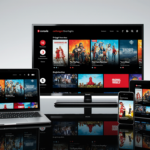
Subtitles, or closed captions, are a vital tool for millions of viewers. They provide accessibility for deaf and hard-of-hearing audiences. They also aid comprehension for those learning English or watching in noisy environments. In the UK, major broadcasters have legal obligations to provide subtitles on their catch-up services. This ensures everyone can enjoy their favorite shows, dramas, and news programs. Understanding how to activate them unlocks a more inclusive and flexible viewing experience.
Beyond accessibility, subtitles can enhance understanding of complex dialogue or accents. They are indispensable for following fast-paced political debates or intricate plot lines. With the rise of streaming, knowing how to get subtitles on catch up tv is a fundamental digital skill. This guide will walk you through every major UK platform and device. You will never miss a word of your program again.
A Universal Guide Overview
Each catch-up TV service has its own interface and settings menu. The process, however, follows a common pattern across BBC iPlayer, ITV Hub, All4, and My5. You typically need to start playing a selected program first. Then, you look for an on-screen icon, often labeled “CC,” “S,” or “Subtitles.” Clicking or tapping this icon opens a menu to toggle subtitles on or off. Some platforms also offer settings for subtitle size, color, and background.
This guide provides detailed, step-by-step instructions for each broadcaster. We cover web browsers, smartphones, tablets, smart TVs, and set-top boxes. We also address common technical glitches and provide workaround solutions. By the end, you will be an expert in managing subtitle settings on any device. Let’s begin with the UK’s most popular service, BBC iPlayer.
BBC iPlayer: Enabling Subtitles
BBC iPlayer offers robust subtitle support for almost all its content. The process is intuitive and consistent across different viewing methods.
On a Web Browser (PC/Mac)
Navigate to the BBC iPlayer website and select a program to watch. Once the video player is active, look for the “Subtitles” icon in the player’s control bar. It usually appears as a rectangular speech bubble or the text “S.” Click this icon to turn subtitles on instantly. You can click it again to turn them off.
For more customization, click the “Settings” cog icon next to the subtitle button. Here you can change the subtitle font size, color, and background opacity. These adjustments can make reading much easier on a computer screen. Remember, subtitles must be available for that specific program, which is true for most BBC content.
On Mobile Apps (iOS/Android)
Open the BBC iPlayer app on your phone or tablet and play a show. Tap the screen to reveal the playback controls. You will see a “CC” or “Subtitles” icon among the controls, typically at the top-right. A single tap on this icon will enable the subtitles. The subtitles will then appear at the bottom of the screen throughout playback.
If you cannot find the icon, check the app’s general settings menu before playing a video. Some older app versions have a global subtitle toggle. Ensure your app is updated to the latest version for the best functionality. This guarantees a smooth experience with subtitle settings catch up tv.
On Smart TVs and Streaming Devices
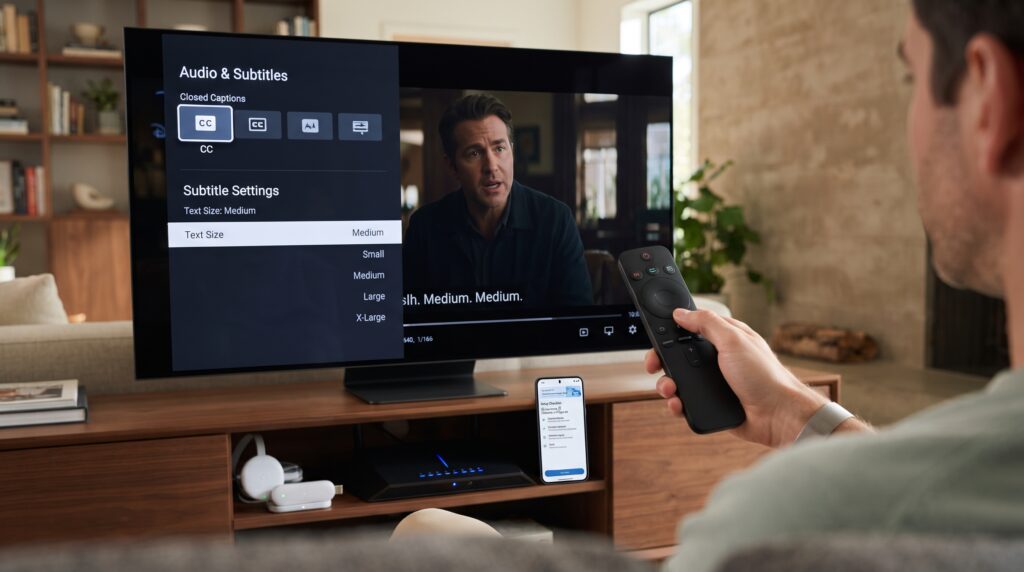
Launch BBC iPlayer on your Smart TV, Fire TV, Roku, or Sky Q box. Play your chosen programme. Using your remote control, press the button that brings up the on-screen player menu. Navigate to the option labeled “Subtitles,” “Closed Captions,” or “Audio & Subtitles.” Select this option and choose “On” or “English” to activate them.
The exact location varies by device manufacturer. On many remotes, the “Options” or “*” button opens this menu. If you encounter difficulties, consult your device’s help section for iPlayer. The BBC also provides excellent online support for specific TV models.
Summary for BBC iPlayer: Look for the “S,” “CC,” or “Subtitles” icon in the active video player. Click or tap it to enable. Use the settings cog for customization options on web browsers.
ITV Hub (ITVX): Subtitle Activation
ITV’s streaming service, now transitioning to ITVX, also provides subtitles. The method is very similar to iPlayer but with slight interface differences.
Via Website and Mobile Apps
On the ITV Hub/ITVX website or app, begin playing your selected content. In the video player controls, locate the “Audio & Subtitles” icon. It often looks like a speaker or a text bubble. Clicking this opens a panel where you can select “Subtitles: On.” The subtitles will then overlay on the video. Some content may offer only “English” subtitles, while others might have none.
ITV subtitle availability can be less consistent than BBC, especially for older content. If the option isn’t present, the programme may not have subtitle files. Check ITV’s accessibility statement for details on their subtitle coverage.
On Television Platforms
Using ITV Hub on a smart TV or set-top box, start playback of a show. Press the “Options” or “Settings” button on your remote. Scroll down the menu to find the “Subtitles” or “Closed Captions” section. Toggle this setting to “On.” The change should apply immediately, and text will appear on screen.
For Sky Glass and Sky Stream subscribers, ITVX is integrated. Access subtitles through the main playback settings menu on these platforms. The process is unified across all channels within the Sky interface.
Channel 4’s All4: Subtitle Setup
All4 (formerly 4oD) is Channel 4’s catch-up service. It offers subtitles for a wide range of its programmes, including dramas and news.
Step-by-Step Online Activation
Go to the All4 website and play a video. Look at the bottom-right corner of the video player. You should see a small “CC” icon for closed captions. Click this icon once to switch subtitles on. A second click will switch them off. The icon may be subtle, so look carefully amongst the play, volume, and full-screen buttons.
All4 does not currently offer in-player customization for subtitle appearance. The font and size are fixed by the platform. This is a known limitation compared to BBC iPlayer’s more flexible settings.
Using the All4 Mobile Application
In the All4 app on your phone, tap on a programme to start streaming. Tap the screen to show the control overlay. The closed caption (“CC”) icon is usually at the top-right of this overlay. Tap it to enable subtitles. They will display in a white font against a semi-transparent black background.
If the icon is missing, ensure the app is updated. Also, verify that the specific episode supports subtitles. Live streams on All4 sometimes do not carry captioning data.
Channel 5’s My5: Finding Subtitles
My5 provides catch-up content for Channel 5, 5Star, 5USA, and others. Subtitle support is available but can be inconsistent.
Browser and App Instructions
On the My5 website or app, begin playing your chosen content. Scan the video player interface for a “Subtitles” toggle. It may be represented by an “S” symbol or be within an “Options” menu. Click it to activate. Unlike other services, My5 sometimes requires you to select “English” from a language list.
My5 subtitles are not available for all archived content. Newer shows and prime-time dramas are most likely to have them. Checking the programme’s information page before playing can sometimes indicate subtitle availability.
Smart TV and Game Console Guidance
On a Smart TV or console (like PlayStation or Xbox), open the My5 app. Start a programme and press the “Settings” or “Options” button on your controller/remote. Navigate to the “Accessibility” or “Subtitles” section of the menu. Switch the subtitle function from “Off” to “On.”
The implementation on these devices can be slower. The subtitles may take a few seconds to appear after you toggle them on. Be patient and allow the stream to buffer the additional subtitle data.
UKTV Play and Other Platforms
Services like UKTV Play (for Dave, Gold, etc.) and BritBox also have subtitle features. The activation method is universally similar.
UKTV Play Subtitle Process
On UKTV Play, play a video and look for the “CC” icon on the player. Clicking it enables subtitles. The service has good subtitle coverage for its original broadcasts. For imported shows, subtitles might be absent.
BritBox and Specialty Services
BritBox, focusing on classic BBC and ITV content, has strong subtitle integration. Use the “Subtitles” menu in the player, often found under an “Audio & Subtitles” heading. Select “English” to turn them on. For niche services, always consult their help pages for precise instructions.
Device-Specific Instructions
The device you use significantly impacts how you access subtitle menus. Here’s a breakdown for common hardware.
Smart TVs (Samsung, LG, Sony)
On most Smart TVs, the catch-up TV app is built into the operating system. While playing video, press the “Options” or “Settings” button on your remote. A side menu or overlay will appear. Look for an “Accessibility” or “Subtitle” entry. Select it and toggle to “On.” Some TVs use a dedicated “Subtitle” button on the remote for universal control.
Streaming Boxes (Roku, Amazon Fire TV, Apple TV)
These devices run independent apps for each broadcaster. Start the programme within the specific app (e.g., iPlayer app on Fire TV). Use the remote’s “Menu” or “*” button to call up the app’s own settings. Navigate to find the subtitle toggle. Roku sometimes has a universal subtitle shortcut via the “Options” button during playback.
Game Consoles (Xbox, PlayStation)
The process on consoles mirrors that of streaming boxes. Launch the catch-up TV app from your console’s media section. Play a show and press the “Options” button on your controller. Find the subtitle setting, usually under “Playback Settings” or “Audio.” Enable it there. Console interfaces can be more granular, offering additional audio description options too.
Set-Top Boxes (Sky Q, Virgin Media)
On integrated platforms like Sky Q, subtitles are controlled via the main system settings. While watching, press the “Services” or “Settings” button on your Sky remote. Go to “Accessibility” and then “Subtitles.” You can set them to “On for all channels” or just for the current programme. This system-level control is very powerful and consistent.
Alternative Methods and Apps for How to Get Subtitles on Catch Up TV
If the native subtitle options don’t work, there are several alternative ways to learn how to get subtitles on catch up TV. These methods can provide captions when broadcasters do not or when the built-in subtitle feature isn’t functioning correctly.
Third-Party Subtitle Websites
Websites like Subscene or OpenSubtitles host subtitle files for thousands of TV shows. If you’re exploring how to get subtitles on catch up TV for downloaded content, you can download a matching subtitle file (.srt format) for your programme. Then, use a video player such as VLC Media Player on your computer to load both the video and subtitle file together. This approach requires manual syncing and is best suited for downloaded content rather than live streaming or official catch-up TV apps.
Browser Extensions for Captions
Browser extensions like Substital for Chrome can inject subtitles into supported streaming video players. These tools search online databases for matching subtitle files while you watch content on services like Netflix or Amazon Prime. Although support for UK catch-up platforms is still limited, browser extensions can be another option if you’re researching how to get subtitles on catch up TV and the standard subtitle controls aren’t available. This solution is generally recommended for more advanced users.
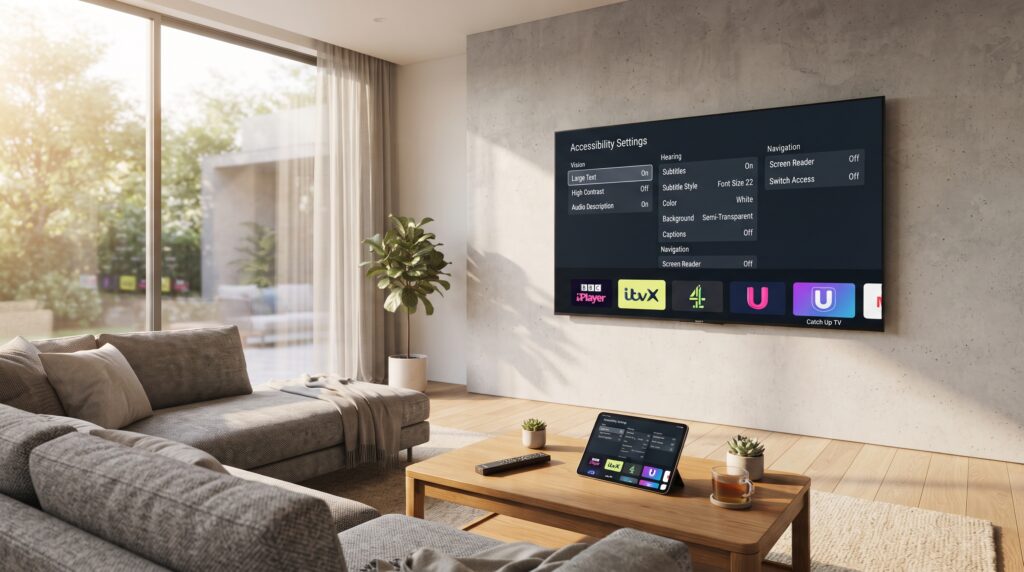
Using Global Accessibility Settings
Many devices include system-wide accessibility settings that can help with how to get subtitles on catch up TV. For example, on an iPhone you can enable Closed Captions + SDH in the Accessibility menu, which may automatically display captions in supported apps. Android TVs and many Smart TVs also include global caption settings. If the subtitle toggle inside a catch-up TV app isn’t working, these accessibility options can provide a reliable backup for how to get subtitles on catch up TV.
Common Mistakes to Avoid When Learning How to Get Subtitles on Catch Up TV
Several simple errors can prevent subtitles from working correctly. If you’re wondering how to get subtitles on catch up TV, avoiding these common mistakes will solve most problems.
Not Starting Playback First: If you’re trying to figure out how to get subtitles on catch up TV, remember that subtitle menus only appear after a video starts playing. Don’t look in the main app settings; look in the active player.
Using Outdated Apps: Older versions of iPlayer or ITV Hub apps may lack subtitle features. Regularly update your apps from the official store to ensure how to get subtitles on catch up TV works properly.
Checking Unsupported Content: Not all programmes include subtitle files. Older archives, niche shows, or live streams often lack subtitles, even if you know how to get subtitles on catch up TV.
Ignoring Device Settings: Sometimes, a device’s accessibility settings override the app. When troubleshooting how to get subtitles on catch up TV, check both the app and your TV or phone’s system settings.
Confusing Audio Description: Selecting “Audio Description” instead of “Subtitles” provides narrated scene descriptions rather than dialogue text. This is a common mistake when learning how to get subtitles on catch up TV.
Pro Tips and Expert Insights
Beyond basic activation, these tips will improve your experience when using how to get subtitles on catch up TV.
Customize for Comfort: On web browsers (BBC iPlayer), use the settings to increase text size and change color. Yellow text on a black background reduces eye strain and makes how to get subtitles on catch up TV even more enjoyable.
Check Before You Watch: Some services list subtitle availability on the programme’s information page. Look for an “S” symbol or “Subtitles” tag before clicking play if you’re planning to use how to get subtitles on catch up TV.
Use HDMI with External Players: If your Smart TV’s app is faulty, connect a laptop via HDMI and use the browser version, which often provides more reliable controls for how to get subtitles on catch up TV.
Report Missing Subtitles: If a programme should have subtitles but doesn’t, contact the broadcaster. BBC, ITV, and Channel 4 have accessibility teams that respond to reports and help improve how to get subtitles on catch up TV for everyone.
Combine with Audio Description: For full accessibility, some services offer both subtitles and audio description. This combination can further enhance how to get subtitles on catch up TV, especially during visually complex scenes.
Mini Case Study & Statistic: A 2023 Ofcom report found that over 18% of UK streaming viewers use subtitles regularly, not only for hearing loss but also for comprehension and focus. As demand continues to grow, broadcasters are improving subtitle quality, making how to get subtitles on catch up TV easier and more reliable than ever.
Frequently Asked Questions (FAQs)
Why are subtitles not showing on my BBC iPlayer?
First, ensure the programme supports subtitles. Second, check your internet speed, as slow connections can delay subtitle loading. Third, update your app or browser and restart your device. These steps solve many issues related to how to get subtitles on catch up TV.
Can I get subtitles on catch up TV for live broadcasts?
Yes, but availability is less consistent. Major live events on BBC iPlayer and ITV Hub often include live subtitles. For other channels, live subtitles may be unavailable or delayed by several seconds when using how to get subtitles on catch up TV.
How do I change the subtitle language on catch up TV?
UK catch-up services primarily offer English subtitles. For multilingual content, such as some films on All4, you may find additional language options within the “Audio & Subtitles” menu while using how to get subtitles on catch up TV.
Are subtitles free on all catch up TV services?
Yes. Subtitles are a free accessibility feature across all major UK public broadcaster catch-up services, including BBC, ITV, Channel 4, and Channel 5. Learning how to get subtitles on catch up TV doesn’t require any additional subscription or payment.
Do subtitles work on all devices?
They work on most modern smartphones, tablets, computers, smart TVs, and streaming devices. Very old Smart TV models or outdated gaming consoles may not fully support how to get subtitles on catch up TV due to software limitations.
How can I make subtitles bigger on my TV screen?
On most catch-up TV apps, subtitle size is fixed. However, many Smart TVs include system-wide accessibility settings that can enlarge subtitles. This is a useful tip if you’re exploring how to get subtitles on catch up TV for better readability.
Conclusion: Embracing Accessible Viewing
Learning how to get subtitles on catch up TV transforms your viewing experience by ensuring you never miss important dialogue, whether because of hearing needs, background noise, or language preferences. This guide has explained how to get subtitles on catch up TV across the major UK broadcasters and device types. The key is to start playback, open the player’s “Subtitles” or “CC” menu, and enable the feature. If problems occur, update your apps and confirm that the programme supports subtitles.
Understanding how to get subtitles on catch up TV is about more than accessibility—it’s a simple way to improve comprehension and enjoyment for every viewer. Whether you’re watching BBC iPlayer, ITV Hub, All4, My5, or another catch-up platform, these tips will help you make the most of every programme with clear, reliable subtitles.